A laptop is a terrible place to keep your dev environment alive. The lid closes, the wifi drops, the battery dies, and whatever you had running goes with it. A VPS doesn't do any of that. It just sits there, awake, on a fat connection, forever.
So put Shellular on the server and let your phone be the remote control. Spin up an agent, close the app, get on with your day, and check back in from anywhere. Here's how to wire it up.
Before you start
You need two things: a server you can SSH into, and the Shellular app on your phone. The server can be anything — an AWS EC2 instance, a Hetzner box, a DigitalOcean droplet, a Mac mini in a closet. The only real requirement is Node.js v20.20.2 or newer. Check it with:
node --versionIf that prints something older, or nothing at all, install a current Node first (nvm or your distro's package manager both work fine). Done? Good, the hard part is over.
Step 1 — SSH into the server and run Shellular
Connect the way you normally would, then start Shellular straight from npx — nothing to install globally:
ssh you@your-server-ip
npx shellular
The CLI prints a QR code right there in your terminal. That's your pairing code.
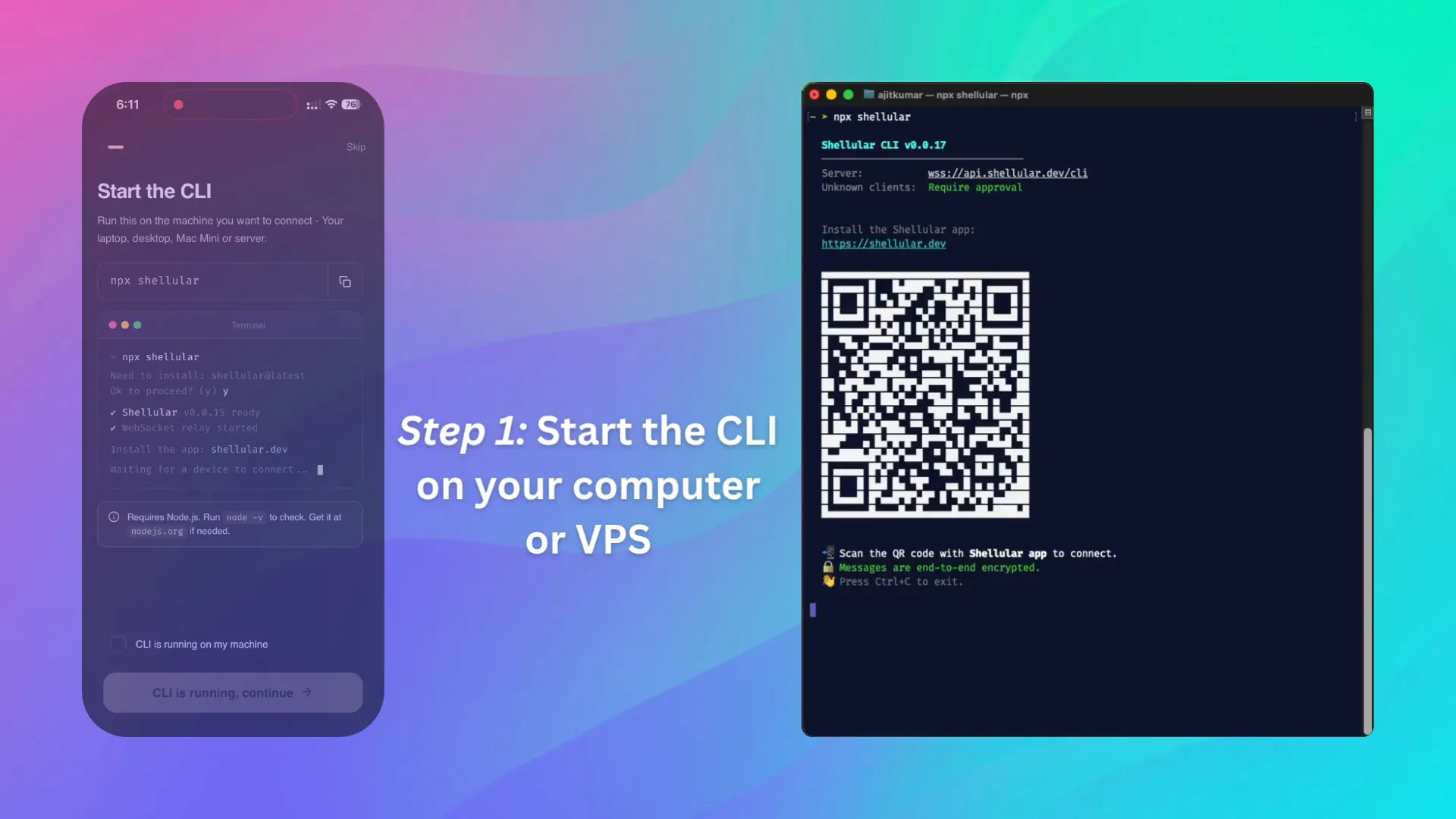
npx shellular on the box and it prints a QR code to scan.
Step 2 — Scan the QR code with the app
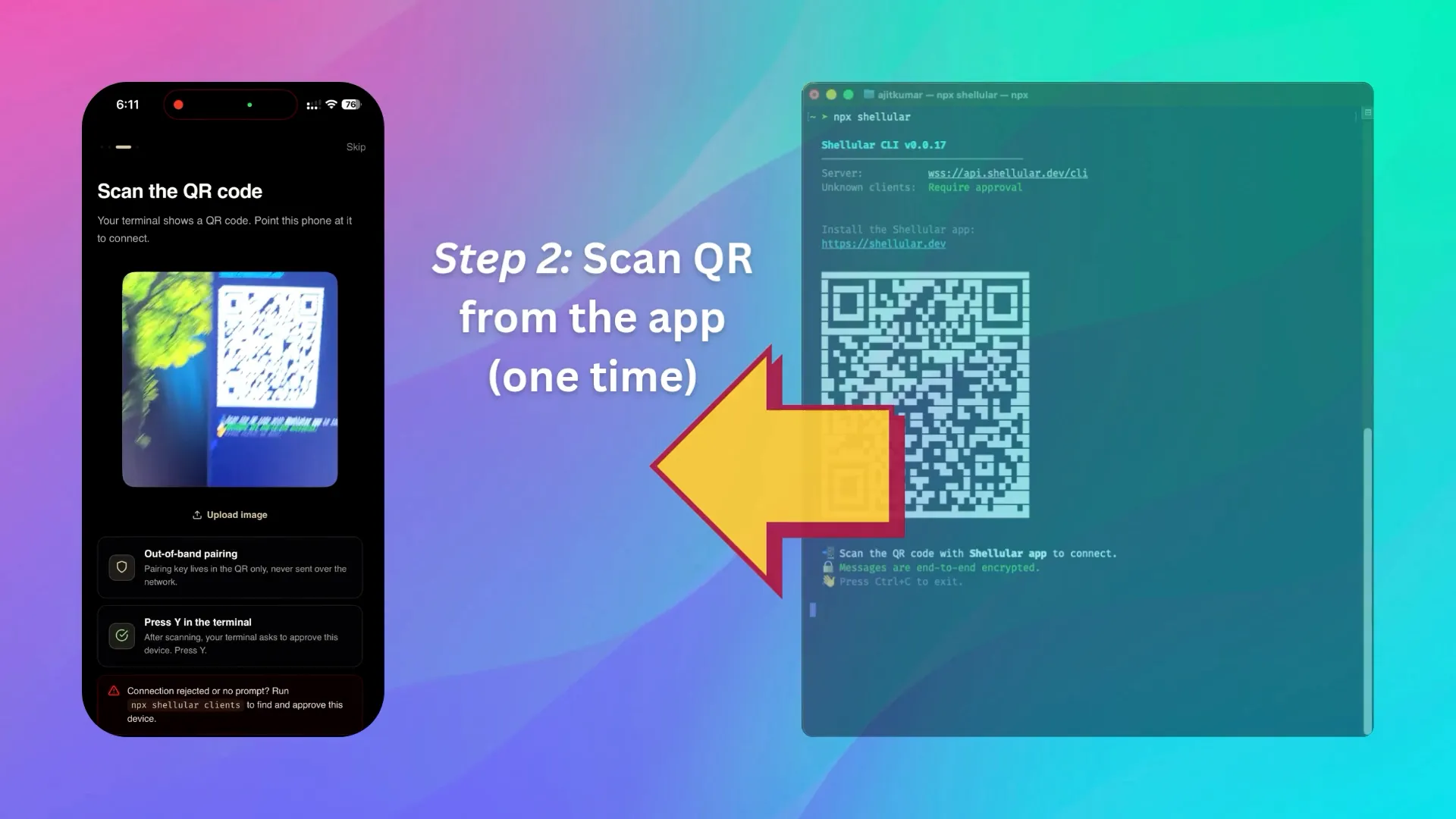
Open the Shellular app on your phone and scan the QR code in your SSH window. That pairs your phone with the server and hands over the encryption key — which is generated on the server and never sent over the network. Your phone is now talking to your VPS over an end-to-end encrypted link.
Don't have the app yet? Grab it for iOS on the App Store or Android on Google Play, then come back and scan.
Step 3 — Approve the device
The first time a new device connects, Shellular doesn't just let it in. Back in your SSH session, it asks you to approve the device. Confirm it, and you're connected: a real terminal, your files, Git, ports, and any AI agent on the box — all from your phone.
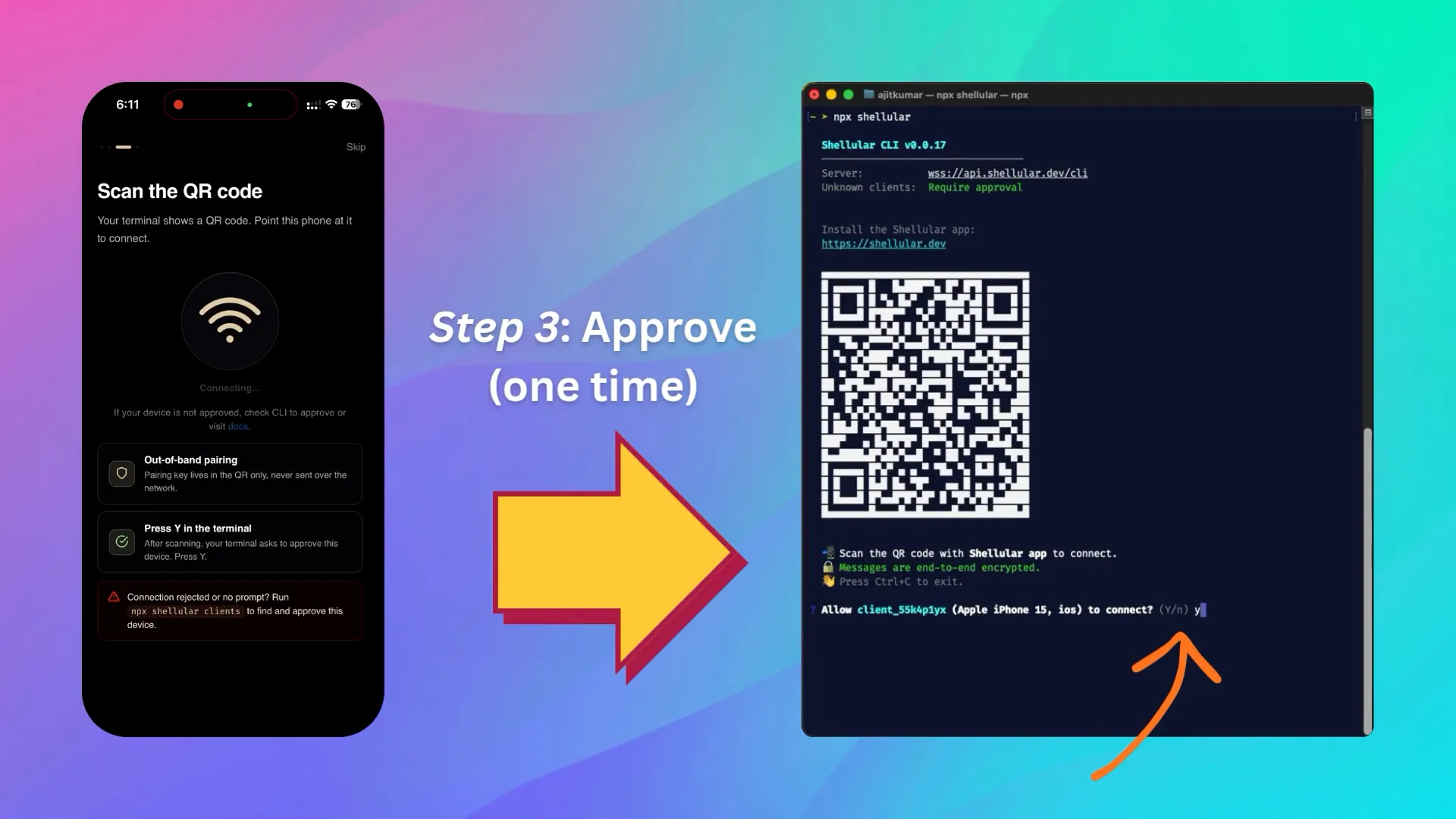
Allow client … to connect? (Y/n) — press y, hit Enter, and you're in.
Approval is per device and it's remembered. You approve your phone once, not every time it reconnects.
Step 4 — Keep it running after you log out
This is the step that matters most on a server. If you run npx shellular in the foreground and then close your SSH session, it stops. On a VPS you almost
always want it running in the background instead:
npx shellular startThat launches Shellular as a background daemon. It survives your SSH disconnect and keeps your server reachable from your phone around the clock. A few commands you'll want:
-
shellular status— check it's alive, see the PID and logs. -
shellular clients— approve a new device (in daemon mode, connections wait here for your OK). shellular logs— stream what the host is doing.shellular stop— shut the daemon down.
In background mode there's no interactive prompt, so a brand-new phone won't
get in until you run shellular clients and approve it. That's the
feature, not a bug — nobody connects to your server without your say-so.
Step 5 — Survive a reboot too
Background mode survives your SSH disconnect, but not a server reboot. On a VPS that gets patched, restarted, or occasionally falls over, you want Shellular to come back on its own. One command sets that up:
npx shellular startup
This registers Shellular to launch automatically on boot. Under the hood it
wraps PM2's startup command, which generates the right init script for your
box — systemd on most Linux servers, launchd on a Mac. You may be prompted
to re-run a line with sudo, since it writes a system-level
service file.
Run
shellular startbeforeshellular startup. The startup script captures the host that's currently running, so the daemon has to be up first for it to be resurrected on boot.
Changed your mind, or moving the host elsewhere? Undo it just as easily:
npx shellular unstartupThat removes the boot script, and Shellular stops auto-starting after the next reboot.
Optional — scope it to one project
By default Shellular exposes your home directory. On a shared or multi-project server you might want to point it at a single folder instead:
npx shellular start --dir /home/you/my-appNow the file browser and terminal start rooted in that project, and that's all your phone sees.
What about firewalls and ports?
Nothing to do. Shellular connects outbound to the relay, so there are no inbound ports to open, no EC2 security-group rules, no Hetzner firewall edits. Your server reaches out, your phone reaches the same relay in the middle, and the two meet over an encrypted channel. Your VPS never gets a public address and nothing on it is exposed to the open internet.
That's it
SSH in, run npx shellular start, scan, approve. Now your
always-on server lives in your pocket — kick off an agent on the box, close
the app, and come back to review the diff from a coffee shop. No lid to keep
open, no machine to babysit.